Alora Maestros for teachers
Run your day from your phone: today's classes, attendance, recognitions, concerns and family messages.
Your Home screen
- Impact — a 0–100 score for the current term (see the FAQ for how it is calculated).
- Quick Actions — Recognize, Log Concern, Message and Resources.
- Alora Morning Brief — students who may need you today, wins worth celebrating, and today's mission.
- Today's Classes — your schedule. Tap a class to open it. A red number means pending grades plus students flagged for follow-up in that class.
- Student Spotlight and Needs Attention — wins to recognize and work that is waiting on you.
The grid icon at the top opens the Teaching Command Center: your week's timeline, insights and this week's numbers.
Take attendance
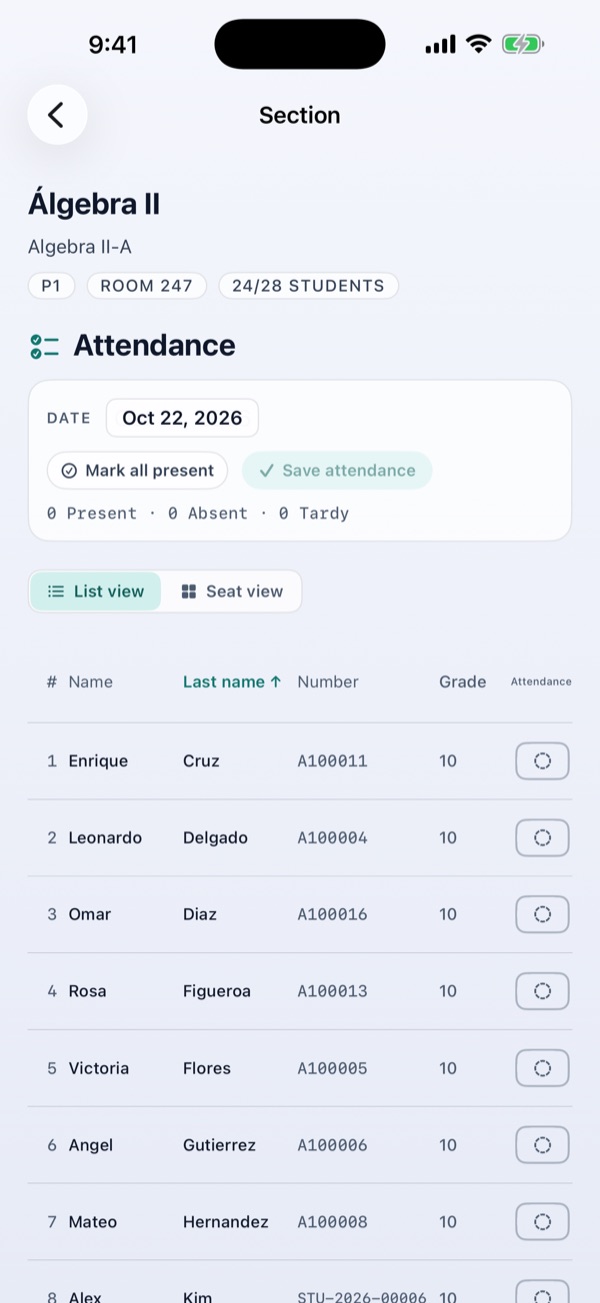
- Tap the class in Today's Classes.
- Check the date. You can pick another day if you are catching up.
- Tap each student's mark to cycle it: Present → Absent → Tardy. Or tap Mark all present and change the exceptions.
- Tap Save attendance. The app confirms only after the server has the marks.
Switch to Seat view to take attendance on your seating chart: tap a seated student to change their mark. You can drag students between seats; the room layout itself is edited in the web portal.
Recognize a student
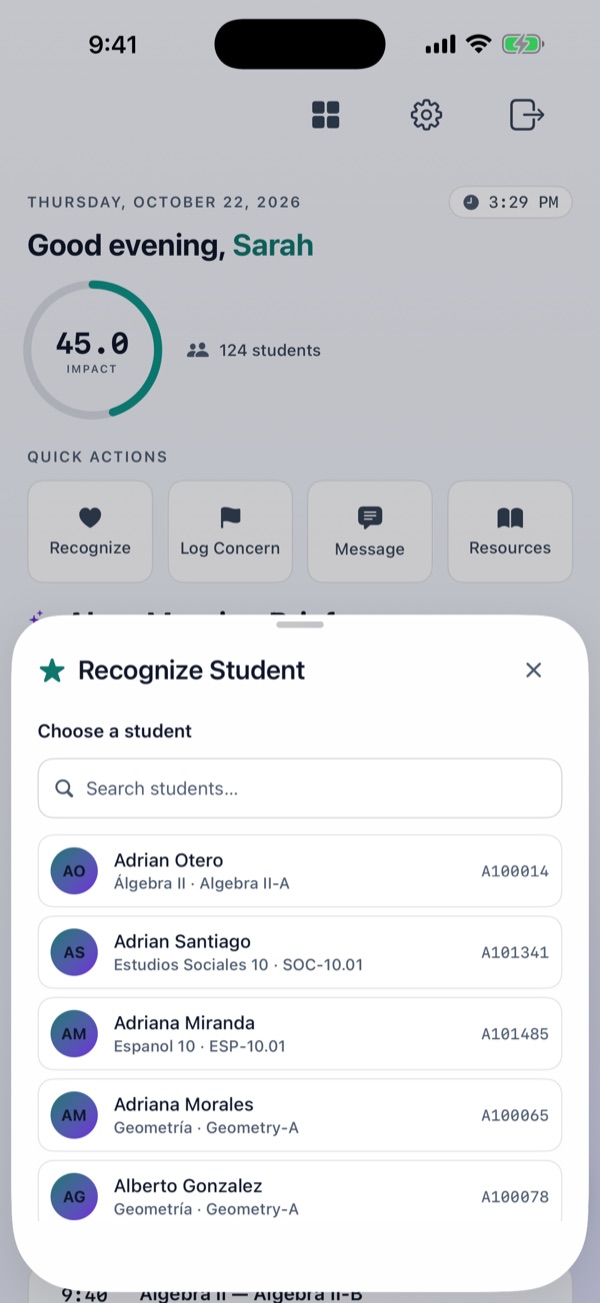
- Tap Recognize (or the button on a student's profile or spotlight).
- Choose the student — you can search by name or student number.
- Pick a category and describe what they did.
- Choose whether the family can see it.
- Tap Send Recognition.
Log a concern
- Tap Log Concern and choose the student.
- Pick a severity (Info, Warning or Critical) and a category.
- Describe what you observed and tap Log Concern.
They are never visible to families. Only authorized staff can see them.
Message a family
- Tap Message and choose the student.
- The student's guardians with Alora accounts appear — the message goes to all of them.
- Write a subject and message, then tap Send.
If a student has no guardian accounts yet, sending is turned off and the app tells you.
Student profiles
Tap a student's name anywhere to see their classes with you, recent grades, recognitions and open flags, attendance and guardians — with the same quick actions, already filled in for that student.
Alora Chat
If your school turned it on, the round chat button at the bottom right opens Alora Chat, an AI assistant for planning and ideas. Every AI reply is labeled AI Generated.
What is web-only
The gradebook, editing the seating-chart layout and writing resources are in the Alora web portal.
Alora Maestros para maestros
Lleva tu día desde el teléfono: clases de hoy, asistencia, reconocimientos, preocupaciones y mensajes a las familias.
Tu pantalla de Inicio
- Impacto — una puntuación de 0 a 100 del término actual (ver preguntas frecuentes).
- Acciones rápidas — Reconocer, Registrar Preocupación, Mensaje y Recursos.
- Resumen matutino de Alora — estudiantes que pueden necesitarte hoy, logros para celebrar y la misión del día.
- Clases de hoy — tu horario. Toca una clase para abrirla. Un número rojo indica notas pendientes más estudiantes señalados para seguimiento en esa clase.
- Estudiantes destacados y Requiere atención — logros para reconocer y trabajo que te espera.
El ícono de cuadrícula arriba abre el Centro de Mando: tu horario de la semana, alertas y los números de la semana.
Tomar asistencia
- Toca la clase en Clases de hoy.
- Revisa la fecha. Puedes elegir otro día si te estás poniendo al día.
- Toca la marca de cada estudiante para cambiarla: Presente → Ausente → Tardanza. O toca Marcar todos presentes y cambia las excepciones.
- Toca Guardar asistencia. La app confirma solo cuando el servidor ya tiene las marcas.
Cambia a Vista de asientos para tomar asistencia en tu mapa de asientos: toca a un estudiante sentado para cambiar su marca. Puedes arrastrar estudiantes entre asientos; la distribución del salón se edita en el portal web.
Reconocer a un estudiante
- Toca Reconocer (o el botón en el perfil o en destacados).
- Elige al estudiante — puedes buscar por nombre o número de estudiante.
- Escoge una categoría y describe lo que hizo.
- Decide si la familia puede verlo.
- Toca Enviar Reconocimiento.
Registrar una preocupación
- Toca Registrar Preocupación y elige al estudiante.
- Escoge la severidad (Info, Advertencia o Crítica) y una categoría.
- Describe lo que observaste y toca Registrar Preocupación.
Las familias nunca las ven. Solo el personal autorizado tiene acceso.
Escribir a una familia
- Toca Mensaje y elige al estudiante.
- Aparecen los encargados del estudiante que tienen cuenta en Alora — el mensaje les llega a todos.
- Escribe un asunto y el mensaje, y envíalo.
Si el estudiante todavía no tiene encargados con cuenta, el envío se desactiva y la app te lo indica.
Perfiles de estudiantes
Toca el nombre de un estudiante en cualquier lugar para ver sus clases contigo, notas recientes, reconocimientos y señales abiertas, asistencia y encargados — con las mismas acciones rápidas, ya listas para ese estudiante.
Alora Chat
Si tu escuela lo activó, el botón redondo abajo a la derecha abre Alora Chat, un asistente de IA para planificar e idear. Cada respuesta de la IA está marcada como generada por IA.
Lo que está solo en la web
El registro de notas, la edición de la distribución del salón y la creación de recursos están en el portal web de Alora.